


Use APKPure App
Get Google Voice old version APK for Android

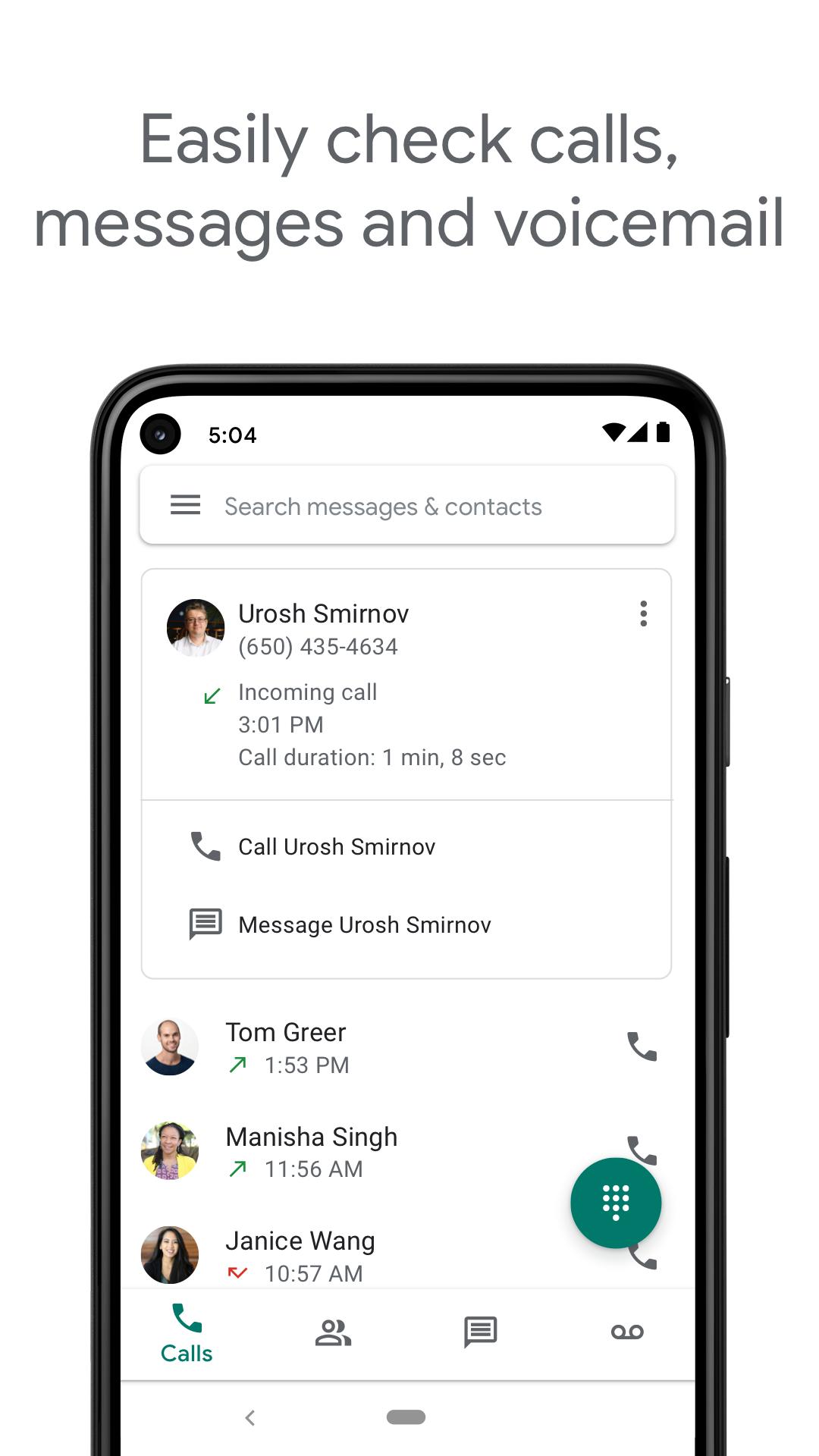
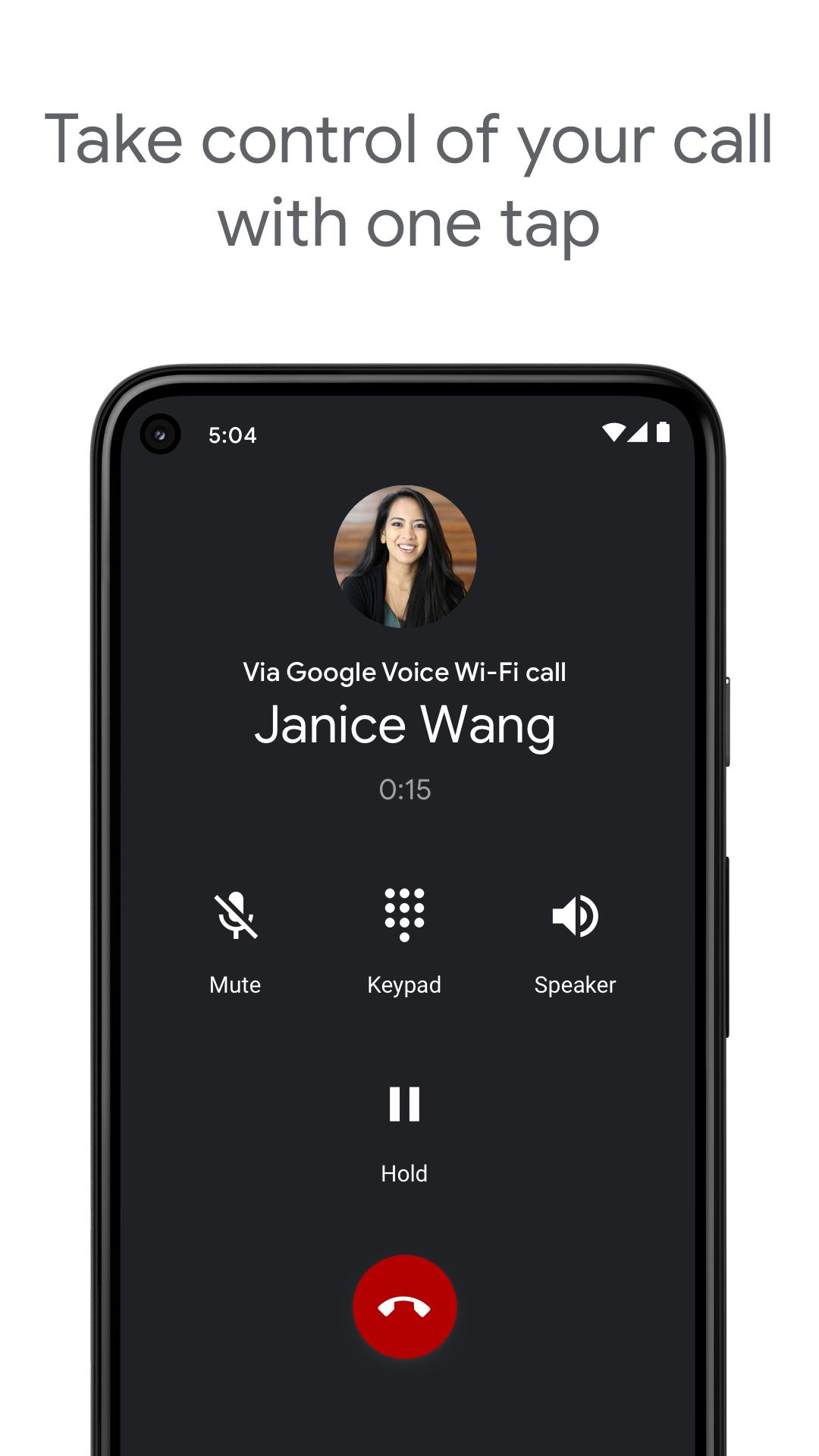

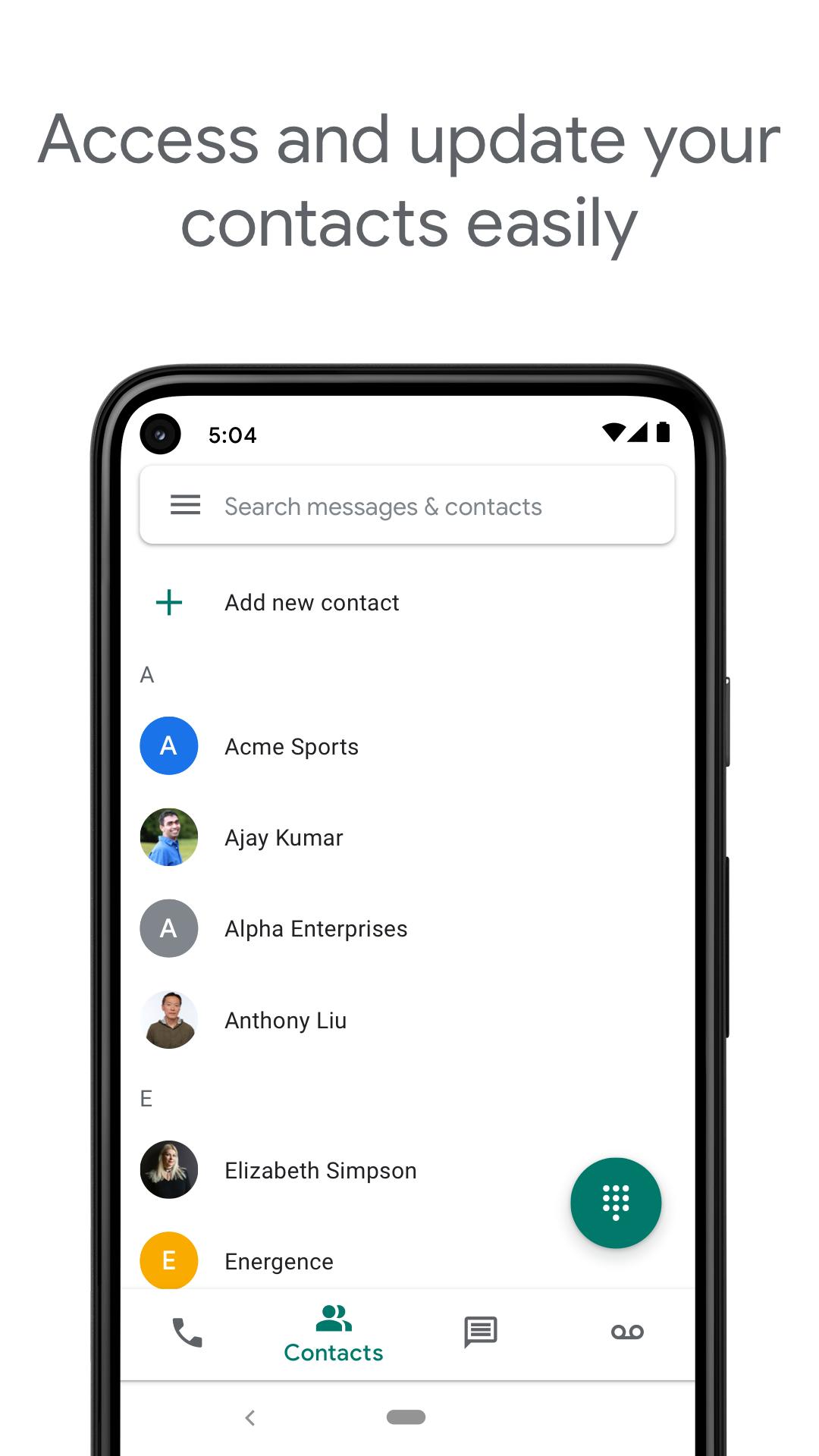
Google Voice is a communications app that provides a dedicated number for calls, texts, and voicemail.
Google Voice addresses situations where you want one number that works on phone, tablet, and computer. It keeps calls, messages, and voicemail in one place, which helps you stay reachable at work, at home, or while traveling. Personal accounts are available in the US, and availability for Google Workspace varies. Texting is not supported in all markets, so coverage depends on your location. If you need cross device communication, download Google Voice to set up a number and keep conversations in sync.
One number across devices
Google Voice uses the same number for calling, texting, and voicemail on your phone, tablet, and computer. Your conversations sync across devices, so you can reply on whichever device is nearby. This helps you switch between contexts without losing track of messages.
Call, text, and voicemail control
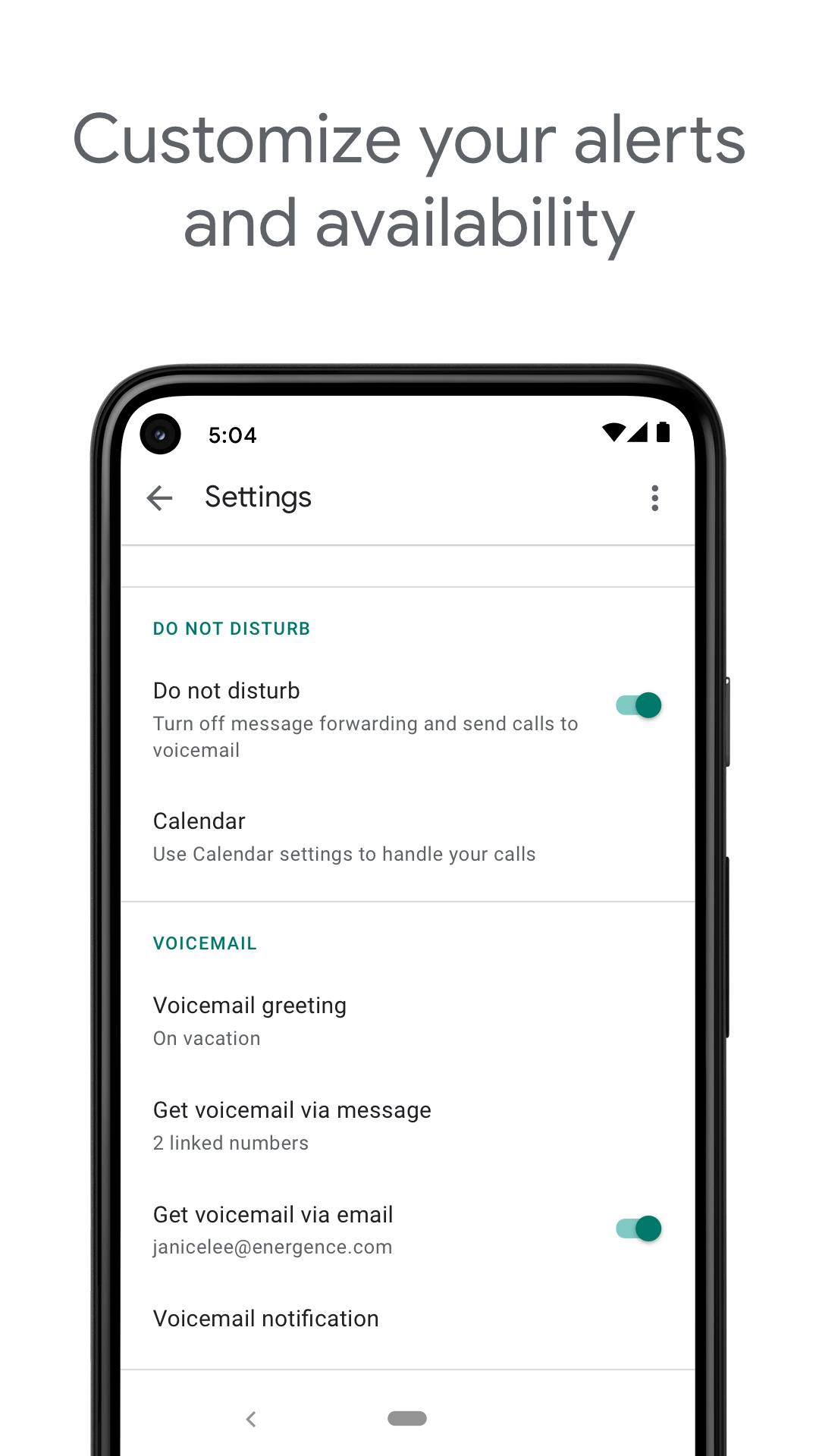
You can automatically filter spam and block unwanted numbers to reduce interruptions. Google Voice lets you adjust forwarding for calls, texts, and voicemail to match your daily schedule. As plans change, it is easy to update these settings and keep control of who can reach you and when.
Readable voicemail transcriptions
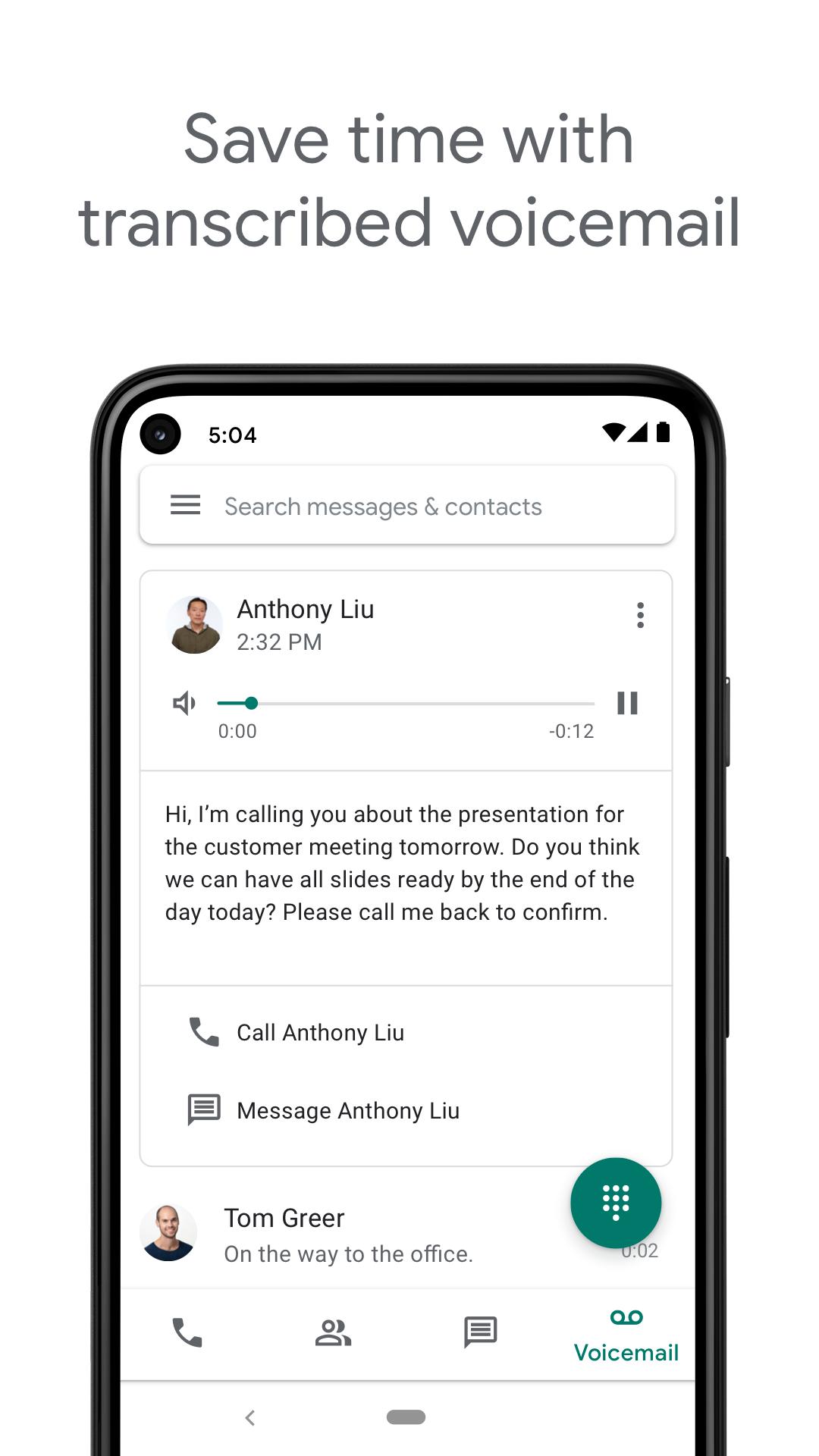
Voicemail messages are transcribed into text inside the app. You can also choose to have these transcriptions forwarded to your email, which makes it quicker to review missed calls. This is useful when you cannot listen to audio but still need the details.
Backed up and searchable history
Google Voice stores your calls, texts, and voicemails and keeps them backed up. The search feature helps you find a past message or call record by name, number, or keyword. This makes it straightforward to trace a conversation or retrieve important information.
Save on international calling
International calls can be placed at competitive rates without relying on carrier international minutes. This approach helps manage costs when contacting people outside your country. Before calling, you can check rates for your destination and choose the best option for your needs.
Personal Google Voice accounts are available in the United States. Google Workspace accounts are supported in select markets, and eligibility can vary by organization and region. Texting is not supported in all markets, so some users may only have calling and voicemail.
On some Android phones, calls may route through a Google Voice access number. In those cases, calls can use carrier minutes and may incur costs when traveling. International calling uses Google Voice rates, so review destination rates to understand potential charges before you place a call.
You can choose a new number or port an eligible existing number during setup. The service works on smartphones and computers, so you can place calls and manage messages from different devices. If you plan to install the Google Voice APK on Android, verify that you can sign in with a supported Google Account and that service is available in your area.
This quick guide shows the basics for calling, texting, and voicemail on Android. To begin, open the app after installing the Google Voice APK. The steps below outline number selection, forwarding, notifications, and starting a conversation.
Google Voice gives you one number for calls, texts, and voicemail across devices with tools to manage how you are reached. For the best experience, check the Google Voice latest version and confirm availability in your region. Install and set up your number to begin communicating from phone, tablet, or computer.
For official support and more details, use the links below.
Last updated on Mar 25, 2026
• Stability and performance improvements
Latest Version
 2026.03.14.883854649
Uploaded by
Brändön Kaneki Gonzalez
Requires Android
Available on

Category
Report

Discover what you want easier, faster and safer.
